Data Imports / Exports
This page covers how data flows into and out of ConcordLink, including the import sequence, manual and automated imports, and export configuration.
How data is imported
Data imports follow a structured sequence to ensure information loads correctly and in the right order:
| Step | Data type | Why this order |
|---|---|---|
| 1 | Obligations | Records must exist before any other data can be associated with them. |
| 2 | Transactions | Imported next and linked to the appropriate accounts. |
| 3 | Activity and notes | Preserves historical communication or servicing records. |
| 4 | Payment methods | Require existing obligation records to attach to. |
| 5 | Custom data updates | Updates additional or custom data fields on existing obligations. |
Adding and importing products
- To run a data import, the product must already exist in ConcordLink.
- Add a product using + Product or Import.
- Products can be created from a template or built from scratch.
Running an import
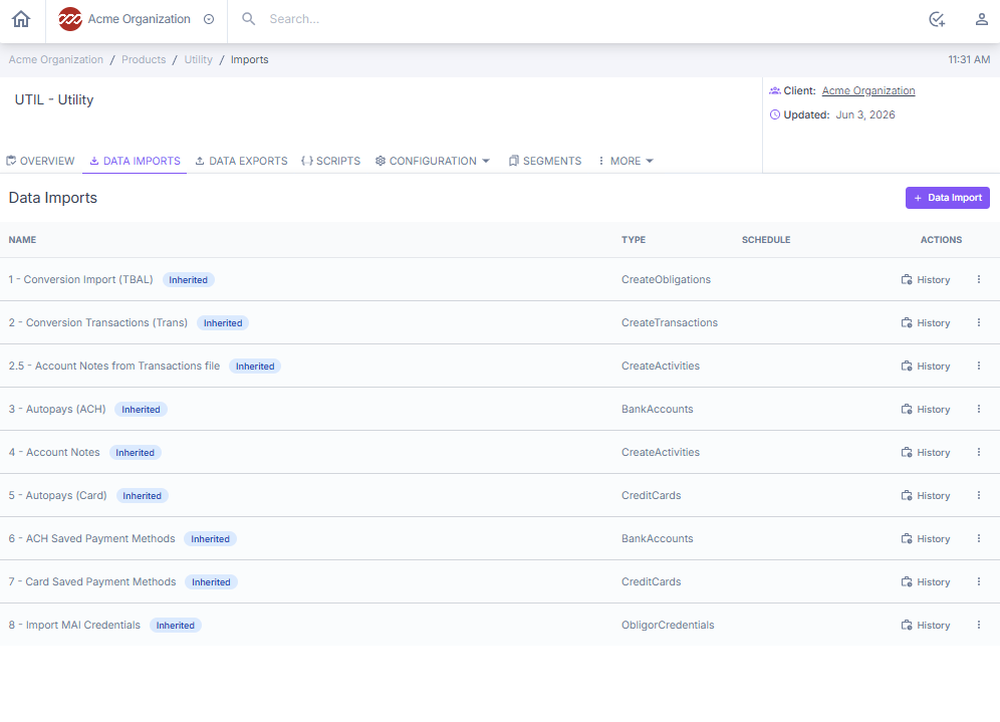
- Navigate to the Products page and select the applicable product.
- Select the Data Imports tab.
- Locate the desired import in the list and select it.
- Select the Actions icon (briefcase with a plus) to initiate the import.
Encrypted imports and data source inheritance
Data import supports encrypted files and can reuse connection settings from the import definition:
- Encrypted file uploads are now supported directly in the data import dialogs, so you can upload an encrypted file rather than decrypting it first.
- PGP decryption/encryption is supported for imports, so files protected with PGP can be processed by the platform.
- Inherit data source and encryption keys from the definition. An import can inherit its data source and encryption keys from the import definition instead of re-specifying them each run, which keeps scheduled and repeated imports consistent.
Field mapping additions
Recent updates added and corrected several import field behaviors:
- Card type is set automatically when importing payment methods. You no longer need to supply it separately; ConcordLink derives it from the card data.
- Sales tax rates import as percentages. Fractional values are converted correctly on import, so a rate expressed as a fraction lands as the correct percentage.
- Obligation follow-up date is now a mappable field on import, so you can set follow-up dates directly from the import file.
Bank account and autopay imports
Import behavior for bank accounts and autopays has been tightened to handle real-world files more reliably:
| Behavior | What it does now |
|---|---|
| Multiple autopays on the same account | A file with several autopay records pointing at the same bank account enrolls all of them. Previously only the first autopay on a given account was created. |
| Re-running the same import | Running the same import a second time no longer creates duplicate autopay records. The importer recognizes existing autopays and skips them. |
| Corrupted or non-numeric account numbers | Rejected at the top of the import with a clear error. This includes the scientific-notation form Excel produces from long account numbers (for example, 4.5678E+15). Fix the source file — do not attempt to correct on live data. |
If you receive a rejection for account-number formatting, open the source file in a text editor rather than Excel to verify the underlying value, then re-export or hand-edit the column as text before re-uploading.
Nested JSON imports and shared-obligor products
- Nested JSON files: Imports of nested JSON files no longer silently drop fields such as obligor details. Previously, dropped obligor data caused the import to fail later with
at least one obligor is required. Nested obligor fields are now preserved through the import. - Shared-obligor products: A timed-out obligation creation on a shared-obligor product could previously leave an obligor with no name, no SSN, and no contacts. This is fixed — the obligor is either created cleanly or rolled back, so shared-obligor products no longer end up with empty obligor records.
If you encounter an "at least one obligor is required" error after this change, treat it as a real data issue in the source file rather than a suspected loader bug.
Data exports
Data exports let you extract structured data from ConcordLink in a defined format for reporting, integrations, compliance, or downstream processing. Exports can be run on demand, scheduled automatically, or triggered via API.
Finding data exports
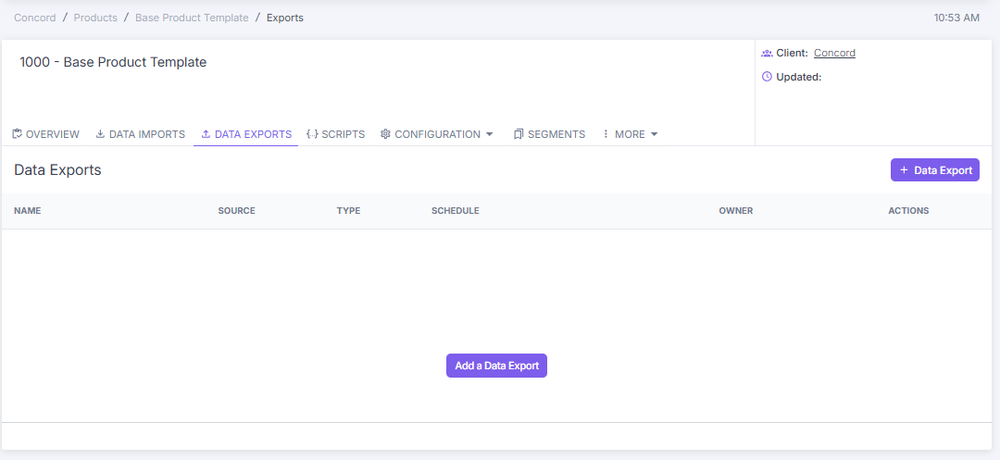
- Navigate to the relevant product.
- Select the Data Exports tab in the top navigation.
Creating a new data export
- From the Data Exports screen, select + Data Export.
- Fill in the Data Export Definition form:
| Field | Description |
|---|---|
| Source | The data entity to export (e.g., Obligations, Accounts, Contacts). |
| Type | Output file format (e.g., JSON, CSV, XML). |
| Name | A descriptive label for this export definition. |
| Advanced configuration | Scheduling, API triggers, segment scoping, and other options. |
| Manual mapping | Define custom field-level mappings instead of using the default schema. |
- Select Save to create the export.
Triggering an export
| Method | How | Best for |
|---|---|---|
| Manually | Select the Run (▶) action icon next to the export. | One-off pulls, testing, ad hoc reporting. |
| On a schedule | Set a schedule in Advanced Configuration using a cron expression. | Recurring reports or automated feeds. |
| Via API | Enable API triggering and use the export's unique identifier in your API call. | ETL pipelines, integration workflows. |
Back to: Administrator Tasks and Actions