Editing Scripts
The Scripts tab is where your organization manages the custom logic that powers automated processes in ConcordLink. Scripts are written in JavaScript and can be run manually, scheduled, or triggered by system events.
Script types
| Type | Description |
|---|---|
| CalculatedFields | Derives computed values on accounts or obligations. |
| Payment | Controls how incoming payments are spread across balances. |
| InstallmentGeneration | Generates installment journals for obligations. |
| StatementGeneration | Produces account statements. |
| General | Standalone scripts for specific actions like creating deferments or generating payoff quotes. |
| Library | Shared utility files imported by other scripts (for example, helpers.js, formatters.js). |
Opening and editing a script
- Select the pencil (edit) icon next to the script, or select the script name directly.
- The script editor opens with four tabs:
| Tab | Purpose |
|---|---|
| Script | The JavaScript code editor — this is where logic lives. |
| Context | Shows the data available to the script at runtime. |
| Typings | Type definitions for available objects and functions. |
| Preview | Simulate the script output before deploying. |
- Make your edits in the Script tab.
- Use the buttons at the bottom to validate and deploy:
| Button | Function |
|---|---|
| Run Tests | Executes any defined test cases against the script. |
| Preview | Shows a simulated output without committing changes. |
| Run | Executes the script once manually. |
| Run All | Runs the script across all applicable records. |
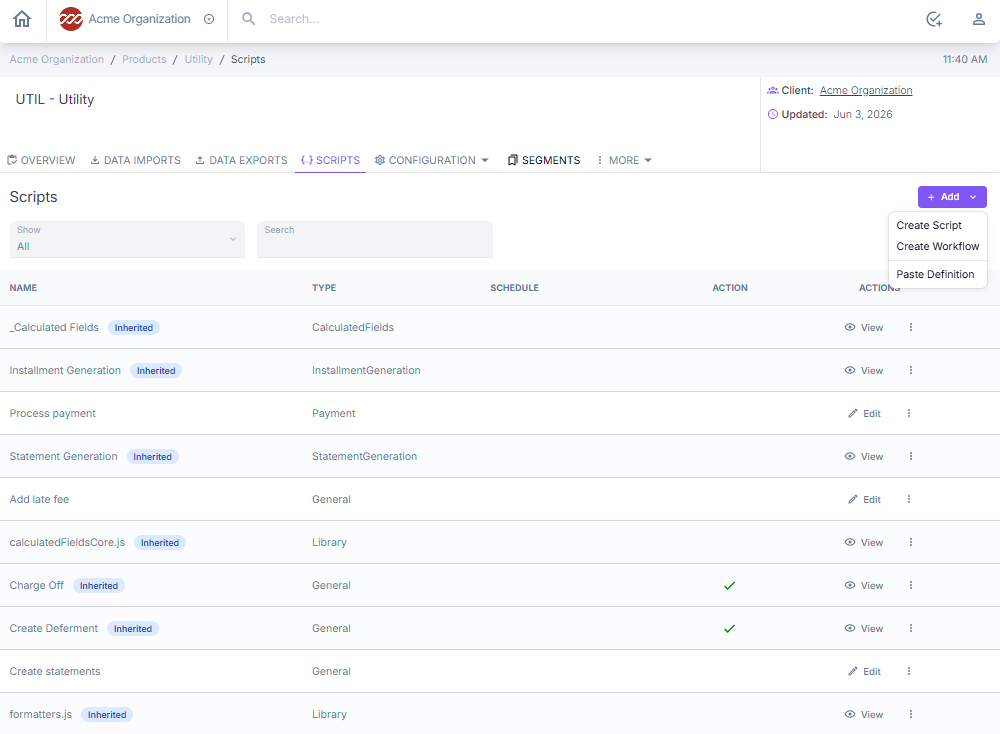
Blueprint script inheritance and overrides
When a product inherits a script from a blueprint (shown with an Inherited badge), you no longer have to copy the script by hand to change its behavior on the child product. Directly from the inheriting product, you can:
- Enable or disable the inherited blueprint script on this product.
- Adjust the inherited script's behavior for this product.
- Take full control of the script in one click — the product takes ownership of the script without losing its tests.
This replaces the previous copy-by-hand workaround, where taking control of an inherited script meant manually duplicating it and re-creating its tests. Use enable/disable or adjust when you only need a small product-specific variation; use take full control when the product needs to own and evolve the script independently.
Adding a new script
- From the Scripts list, select + Add in the top-right corner.
- Select the script type from the dropdown.
- Name the script and begin writing your logic in the editor.
- Use the Context and Typings tabs to reference available data fields.
- Run tests and preview before deploying.
Actions
Actions are configurable, JavaScript-driven automations that perform multiple tasks on an account in a single selection. Examples include:
| Action | What it does |
|---|---|
| Credit disbursement | Changes account status, posts a note, increases the original loan amount, and adds a balance to the principal ledger. |
| Order statements | Triggers a statement to be generated and posted to the account. |
Script structure
The script must return an object with context. It can also optionally include allowPhysical:
function main(context) {
    return {
        context: {
            'DOCUMENTREF': 'ALWAYS.PROVIDE.REF',
            'FIELDINTEMPLATE': 'Static value.\nFields support newline codes!',
            'ANOTHERFIELD': 'Combine static text and fields/code using ' + context.obligation.accountNumber,
            'LASTONE': `Or use backticks and evaluation: ${context.client.name} is rendered.`
        },
        allowPhysical: !context.obligation.hasAutopay
    };
}
Common context fields
| Data | Path |
|---|---|
| Obligation account number | context.obligation.accountNumber |
| Principal balance | context.obligation.ledgers.principal.balance |
| Interest rate | context.obligation.rate |
| Lender name | context.lender.name |
| Client name | context.client.name |
| Custom data field | context.obligation.data.yourFieldName |
| Product documents | context.documents |
Referencing Product Documents
Scripts that create jobs or actions can now reference the parent product's document templates via the document context. Use context.documents to look up a template by key or name and attach the resulting document to the job or action you're creating from the script.
Typical uses:
- Ordering a specific letter as part of a scripted action (for example, an ad-hoc statement or payoff quote) without hardcoding a document ID.
- Iterating over available templates to pick one that matches a condition.
- Wiring document generation into a job flow so a script can hand off the correct template to the renderer.
Confirm the exact shape available in the Typings tab before shipping — the tab reflects the current context schema, including the newly available document context.
Tips
- Library scripts cannot be run directly — they must be imported by other scripts.
- Always run tests before deploying changes to production scripts.
- Add comments to your scripts (especially custom payment spread or installment logic) to make future maintenance easier.
- For scripts marked Inherited from a blueprint, use the override controls above to enable, disable, adjust, or take full control at the child level — you no longer need to copy the script by hand.
- Use the Show filter on the Scripts list to narrow by type when managing large script libraries.
Back to: Administrator Tasks and Actions