Segments
Defining precise subsets of accounts using query-based filters for exports, reports, and bulk actions.
Segments let you define precise subsets of your accounts or contacts using a query-based filter syntax. Whether you're preparing a targeted export, building a report, or isolating a specific portfolio for review, segments give you full control over which records are included.
How segments work
Segments use a Lucene-like query syntax, letting you combine multiple filter conditions using fields, operators, and boolean logic.
| Use case | Query |
|---|---|
| All delinquent accounts | delinquency_status:delinquent |
| 90+ days past due | days_past_due:[90 TO *] |
| No contact in 30 days | last_contact_date:[* TO NOW-30d] |
| High balance, never contacted | balance:[5000 TO *] AND contact_attempts:0 |
| Specific state, active accounts | state:TX AND account_status:active |
Key filterable fields
| Category | Fields |
|---|---|
| Delinquency | delinquency_status, days_past_due, delinquency_amount |
| Contact history | last_contact_date, contact_attempts, contact_result |
| Account details | account_status, balance, open_date, product_type |
| Demographics/geography | state, zip_code, assigned_agent |
Creating and using a segment
- Navigate to Segments in the main menu.
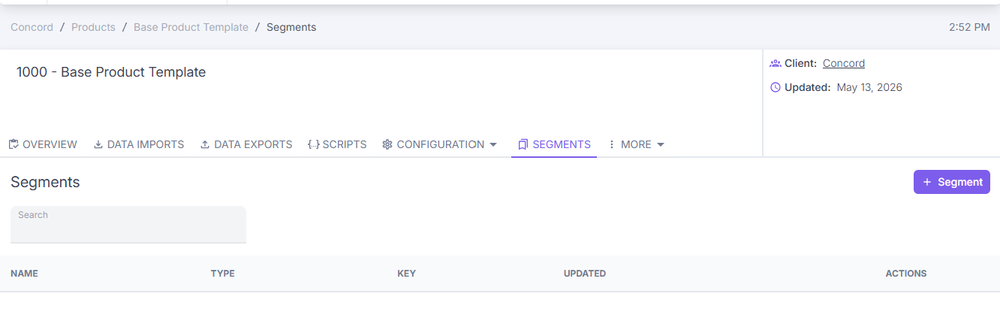
Figure The Segments page in ConcordLink.
- Select New Segment and give it a descriptive name.
- Enter your query using the filter syntax.
- Select Preview to validate the record count and sample data.
- Select Save to reuse the segment, or proceed directly to Export or Report.
Adding a new segment
- Navigate to Concord → Products → Base Product Template → Segments.
- Select the + Segment button in the upper-right corner.
- Select either Obligation Segment or Obligor Segment from the dropdown.
- Complete the required fields: Name, Key, and any applicable criteria.
- Save the segment.
Export scoping with segments
Use a segment to limit an export to a precise subset of data rather than exporting all records from a source.
- When creating or editing a data export, expand Advanced Configuration.
- Select or define a Segment to scope the export.
- Only records matching the segment's query criteria will be included in the output.
Segments must be configured under the Segments tab before they can be referenced in an export.
Tips
- Use
AND,OR, andNOTto combine conditions. - Wrap phrases in quotes for exact matches:
contact_result:"left voicemail" - Use
[* TO value]or[value TO *]for open-ended ranges. - Saved segments can be scheduled for recurring exports.
Back to: Administrator Tasks and Actions