Introduction to ConcordLink for Concord Employees
What is ConcordLink?
ConcordLink is Concord's modern, API-first loan servicing platform that consolidates portfolio operations and data into a single, secure environment. Built for originators, asset acquirers, and lenders, it integrates seamlessly with existing systems, scales with growing complexity and volume, and is highly configurable to meet portfolio-specific needs.
Unlike other solutions, ConcordLink automates key servicing functions, including payment processing, statement generation, and fee management, reducing manual work and saving time. All automated activities are fully auditable, with embedded tools to track accounts and payments. The platform operates in real time and includes a modern, mobile-ready portal for clients and their customers.
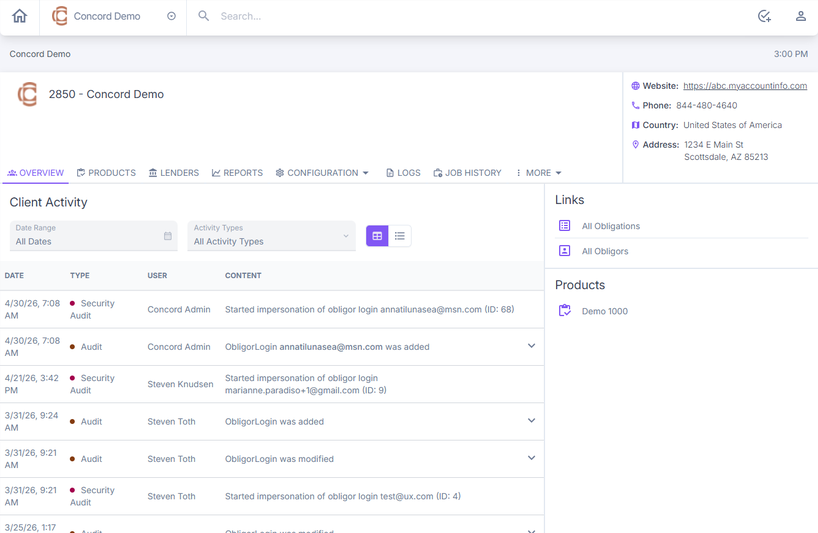
Main advantages of ConcordLink
| Capability | Description |
|---|---|
| Obligation servicing | Full lifecycle administration of any type of receivable including loans and leases on a single platform. |
| Configurable business logic | Scripting engine for waterfalls, late fees, and hardship workflows. No deployments required. |
| Reporting and analytics | Real-time portfolio visibility with a query builder, audit trails, and exportable reports. |
| Integrations and data exchange | API-first with full documentation. Built-in ETL via API, SFTP, or upload. |
| Borrower self-service | Branded portals for payments, account lookups, and document access. Mobile-ready and available 24/7. |
How ConcordLink differs from Interlink and Client Central
In Interlink and Client Central, the business logic that powered a client's portfolio was hidden inside programs owned, maintained, and updated exclusively by Concord. Clients, agents, and employees had no visibility into those programs. When something needed to change — such as a fee calculation, a payment schedule, or a product behavior — Concord had to manage the change. Logic wasn't accessible by clients, and clients couldn't verify changes.
How ConcordLink is different
In ConcordLink, the business rules that govern how a portfolio behaves are customizable scripts. This means clients now have direct visibility and ownership over their portfolio logic — something that was not possible in Interlink or Client Central. Specifically:
- All scripts and configuration changes are tracked in the audit history, giving a complete record of what changed, when, and by whom.
- You can navigate to a product's Scripts tab and read exactly what the late fee script, interest calculation, or payment waterfall does without a support ticket.
- Clients can review, verify, and request updates to their product logic without waiting on Concord to interpret the rules on their behalf.
How ConcordLink helps customers
You get fast access to the right data, intuitive workflows, built-in servicing procedures, and support for escalations. ConcordLink is also supported by self-service tools such as My Account Info (MAI) and ConcordPay.
Existing MAI users can log in using their current account number and password at link.concordapps.com. After entering those credentials, you will be redirected to the new MAI URL where a message will prompt you to confirm the sign-in transition. Select Continue to My Account to proceed.
Getting started in ConcordLink
Set up an account
- Go to link.concordapps.com.
- If shown a cookie notification, select Accept All Cookies.
- Select Forgot Password.
- Enter your email address and select Send Reset Instructions.
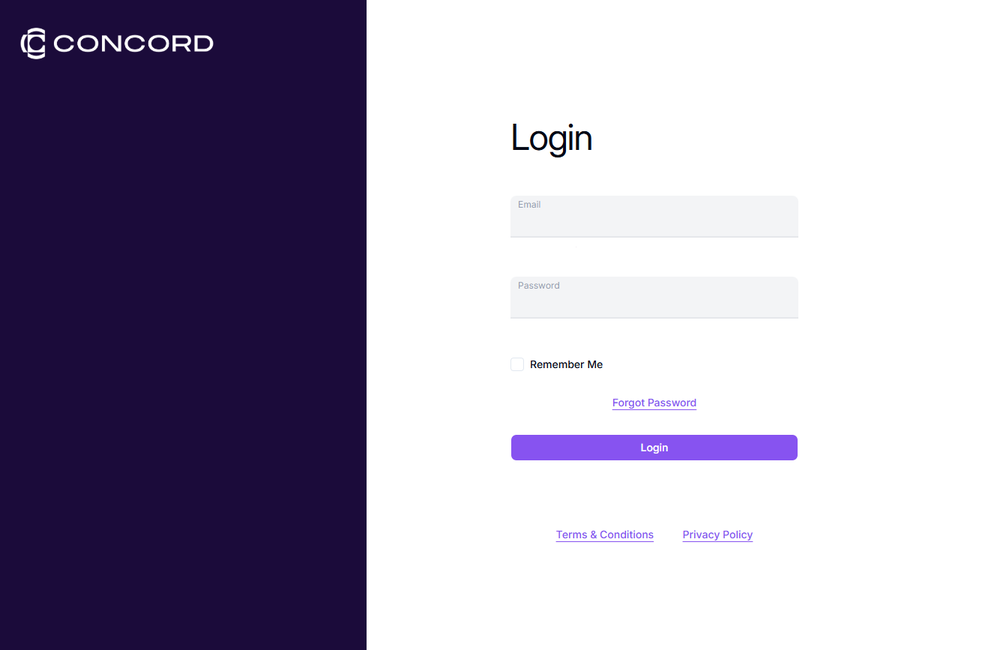
- Follow the link in the password reset email to set your password.
- Log in using your registered email address and password.
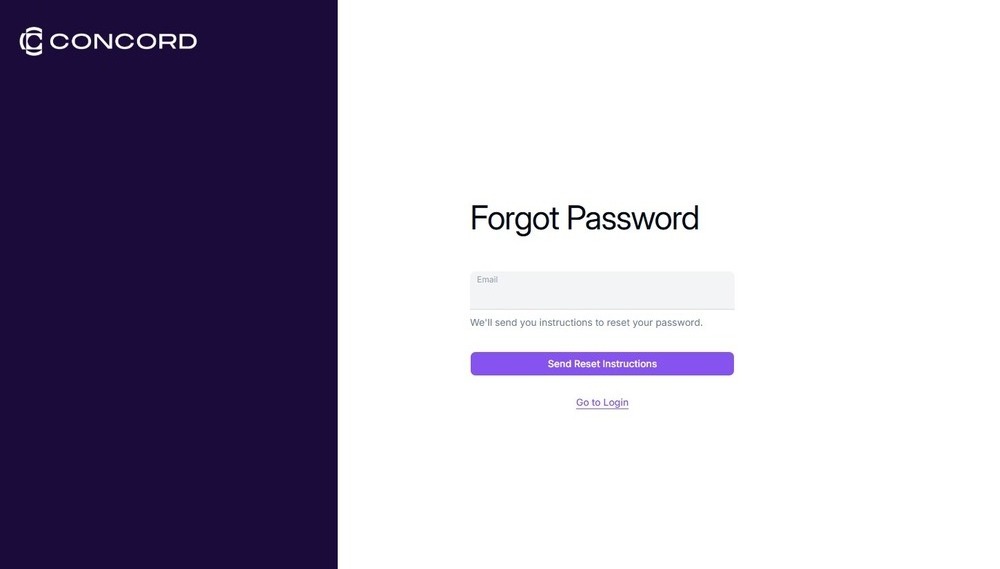
If the reset email lands in your spam folder, right-click it and select Report > Not Junk to move it to your inbox and make the link accessible. Once you set a password, log in using your registered email address and password.
Profile setup
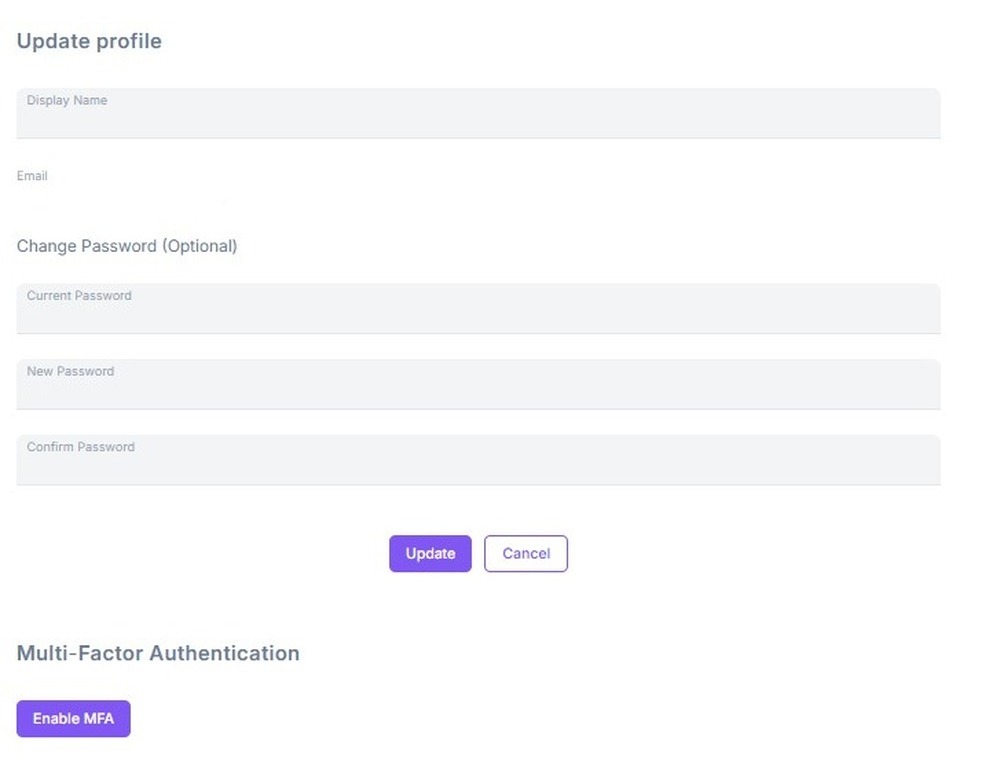
- Select the person icon in the top-right corner of the navigation bar to open the Update Profile page.
- Update your Display Name by selecting the field and editing the text.
- Your Email is pre-populated and used for system notifications and communications.
Password
- In the Password section, enter your Current Password.
- Enter your New Password.
- Re-enter the new password in the Confirm Password field.
- Select Update to save the changes.
Update profile image
- On the Update Profile page, locate the profile image area at the top of the page.
- Select the image or the upload icon to open the file picker.
- Choose an image file from your device.
- Select Save to apply the new profile image.
Multi-Factor Authentication (MFA)
At the bottom of the profile page, select Enable MFA to add an extra layer of security to your account. Once enabled, the system prompts for a second form of verification each time you log in.