Product Toolbar
The Product Toolbar provides access to all product-level tools and configuration options within ConcordLink, including data imports, exports, scripts, segments, and audit history. Most of these functions are used by administrators, but agents should be familiar with what each section contains.
Product overview
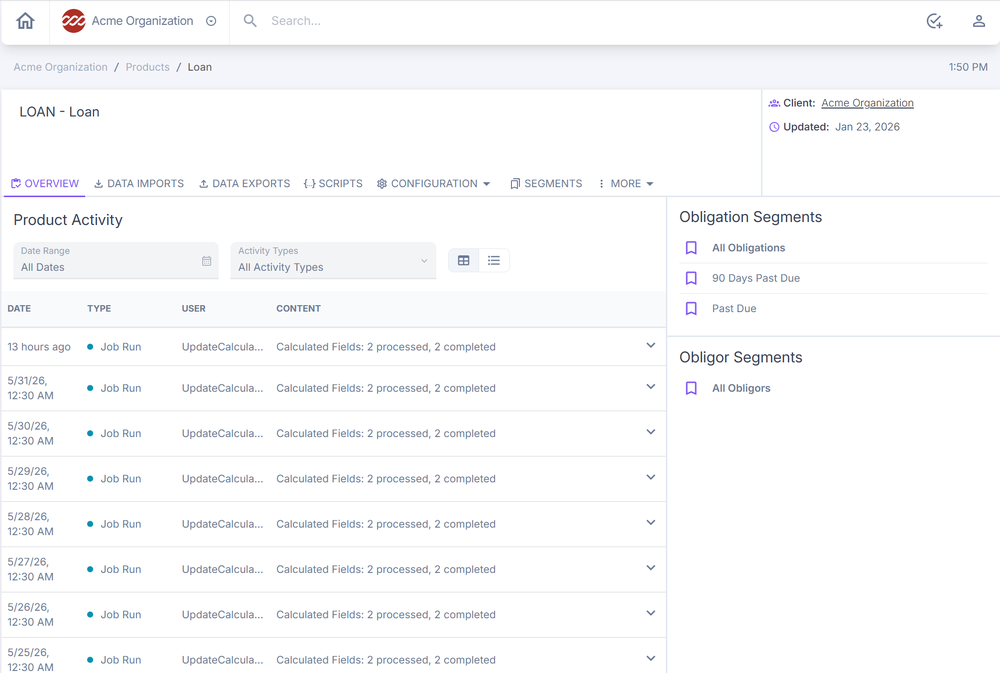
The product overview shows a centralized summary of client information, recent activity, and quick-access links for that product. Like the client activity section, it displays a real-time log of all actions taken, including the date, type, user, and content. Select the down arrow to access additional filters for date range, activity types, and list or table view.
Data imports
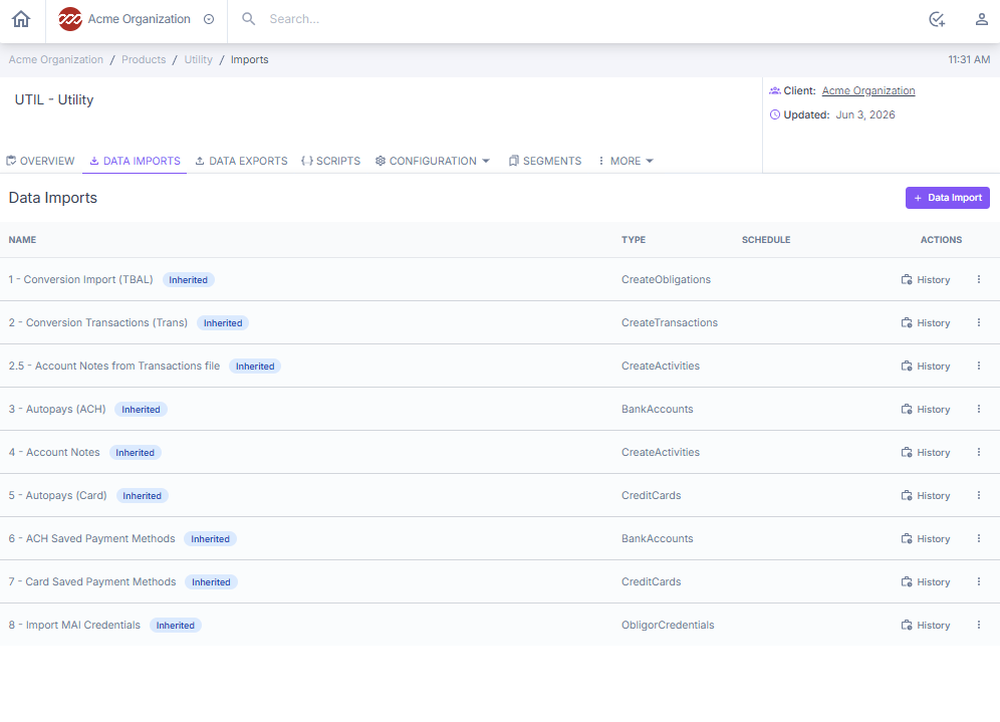
The data imports page manages the structured import of product data into ConcordLink. Data imports bring large volumes of account information, transactions, payment methods, and activities into the system. Imports are completed during initial client onboarding or ongoing data conversions by administrators — agents do not perform this task directly.
Data exports
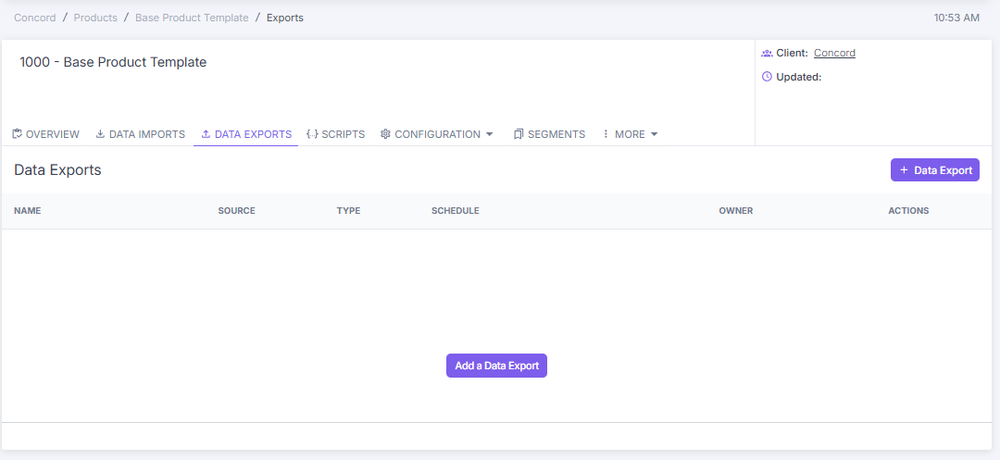
The data exports page lets administrators and authorized users configure automated or manual exports of product data to external systems or files. The exports table displays the name of the export, export source, data format, schedule, owner, and available actions.
Data export definitions
When adding or editing a data export, you complete the data export definition form. This form includes the source, type, name, advanced configuration options, and manual field mapping options. Select Save to apply the export configuration.
The data export section includes options to describe the configuration, schedule it, connect to a data source, assign failure handling, apply filters, choose start and end dates, and name the template.
Scripts
The Scripts page within a product template lets you manage the logic and automation rules that drive product behavior, including calculations, payment processing, and document generation. This function is primarily used by administrators.
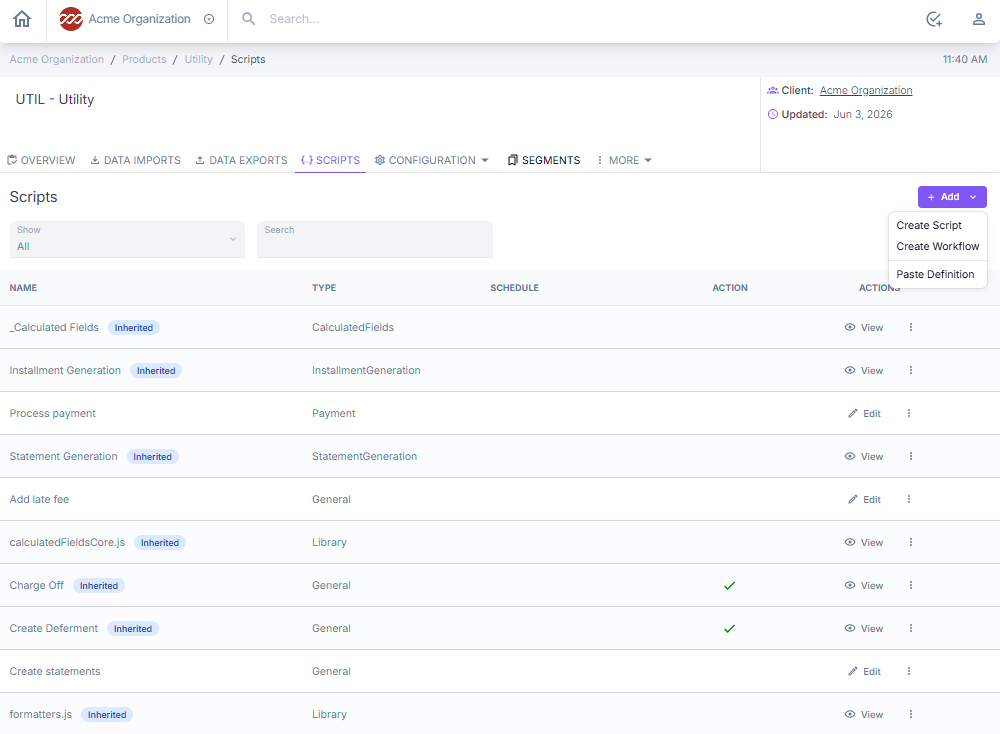
The scripts table shows the name of the script, type, schedule, and available actions. Use the search field to quickly locate a specific script by name. Each row includes options to copy, edit, run, or delete a script.
Configuration menu
The Configuration menu is the central hub for managing all structural and behavioral settings for a product. It contains the following options: product fields, obligation fields, asset fields, project fields, documents, ledgers, return reasons, add-on fees, payment spread, projects, and webhooks. These settings control everything from how data fields are defined and displayed, to how payments are structured, fees are applied, and external integrations are configured.
See Product Configuration Panel for more information.
Segments
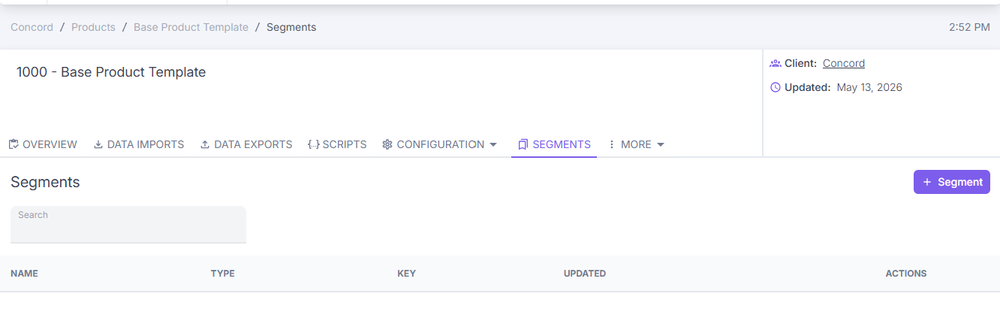
The segments feature lets administrators create custom groupings or classifications of accounts and borrowers within a product template. Segments are used to organize, filter, and differentiate records based on defined criteria, enabling more targeted reporting, processing, and account management. Agents don't use this function often but should be aware of it.
Audit history
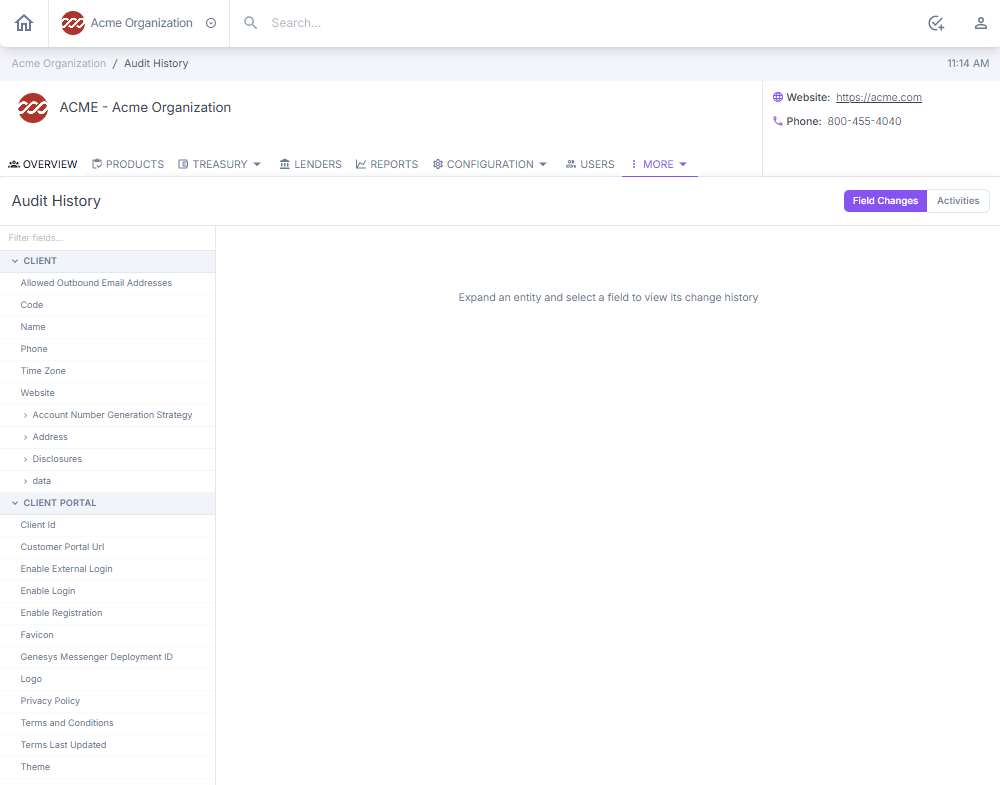
Audit history provides a complete, traceable log of all changes made to a product, letting agents, administrators, and compliance teams review what was changed, when, and by whom.
Audit history is read-only and cannot be edited or deleted.
Next: Continue to Product Configuration Panel for details on product-level settings and field management.