Adding Users
Administrators manage who can access ConcordLink and what they can do through user roles and permissions.
Adding a new user
- Select the + user button in the top-right corner of the users page.
- Fill in the required fields: display name, email, account enabled, ability to assign tasks, and role designation.
- Select Update to save.
Types of roles
For new users, select one or more roles appropriate for the user's responsibilities. The table below shows which roles are appropriate for each user persona.
| Role | Purpose | External Agent |
|---|---|---|
| Viewer | Read-only access for stakeholders. | Typical starting role |
| Editor | Data entry and record processing staff. | Standard agent role |
| Supervisor | Team leads and operations managers. Enables fee waivers, task creation, and escalation actions. | — |
| Manager | Senior operations and management staff. | — |
| Admin | System administrators. Enables portal settings, user management, and full configuration access. | — |
| Treasury | Users who need access to financial or treasury functions. Enables Treasury tab and bank account management. | — |
| Compliance | Users who need access to compliance data, credit reporting workflows, and audit trails. | — |
| Secret Revealer | Users who need to view sensitive data such as full SSNs or complete bank account numbers. All other users see masked values. | Masked values only |
Role permissions by persona
External agents
Assign Viewer and/or Editor roles. External agents can view and work accounts within their own portfolio only. They can view payment history, process payments, manage autopay, add notes, and access statements. They cannot waive fees, create tasks, manage users, or access any other client's data.
View-only users (Viewer role): Users with only the Viewer role cannot see edit or create options across the following areas — they are hidden from the interface entirely:
- Webhooks, Lenders, Statuses, Ledgers, Fees, Projects, Document Templates, Scripts
- Data Imports and Exports
- Communication preferences
- Autopay setup
- Obligation bulk actions
Removing users
- To remove a user, locate the user in the list and deactivate or delete their account.
- User management is also accessible from the Treasury tab under the User Management section, which provides options for viewing, editing, and adding users with defined roles and permissions.
Troubleshooting user access
- Verify the user's role and permission settings are correctly assigned using the table above.
- Check if the account is inactive, locked, or pending activation.
- Confirm the user is associated with the correct portfolio or asset class.
- Reset credentials if login issues persist.
- If a user reports missing screens or options (such as autopay setup, bulk actions, or communication preferences), confirm they have the Editor role or above — view-only users do not see edit/create affordances.
- If permissions appear correct but access is still restricted, escalate to Concord support as it may be a system-level configuration issue.
Password troubleshooting
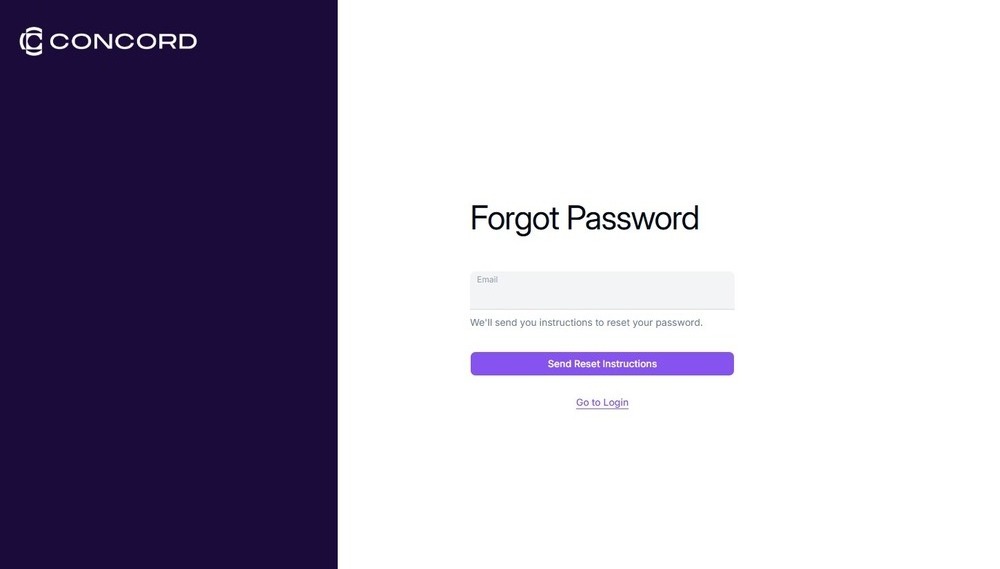
Users can reset their own password by using the Forgot Password link on the ConcordLink login page at https://link.concordapps.com. Administrators can also initiate a password reset from the user management area.
If an account is locked, locate the user in the Users section and unlock or re-enable their access from there.
Next: Continue to Editing Fields for guidance on adding, editing, and managing fields across clients, lenders, and products.