Payment Actions — Fees, Payoffs, and Refunds
Waiving fees
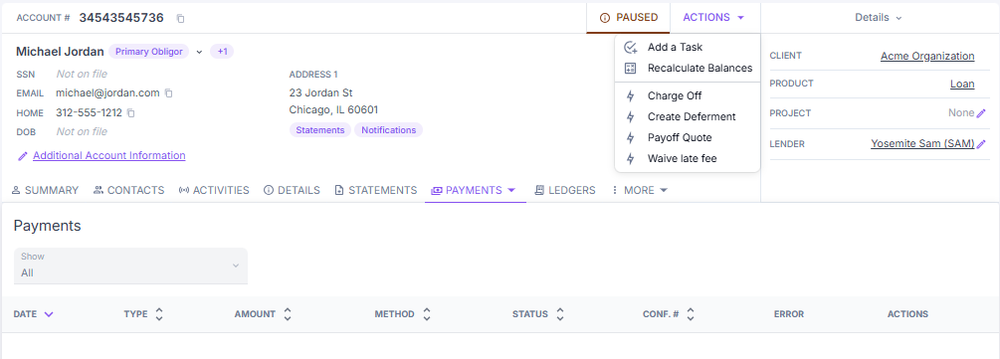
- Navigate to the account and open the Actions menu.
- Select Waive Late Fee or Waive Return Charge.
- The system evaluates eligibility based on client rules (for example, no waiver if a late fee has already been waived in the last 180 days).
- Enter the amount to waive and select the reason (for example, hardship or goodwill adjustment).
- Submit the change, verify the fee balance has been reduced or cleared, and document the account.
Generating a payoff quote
- Navigate to the customer's obligation.
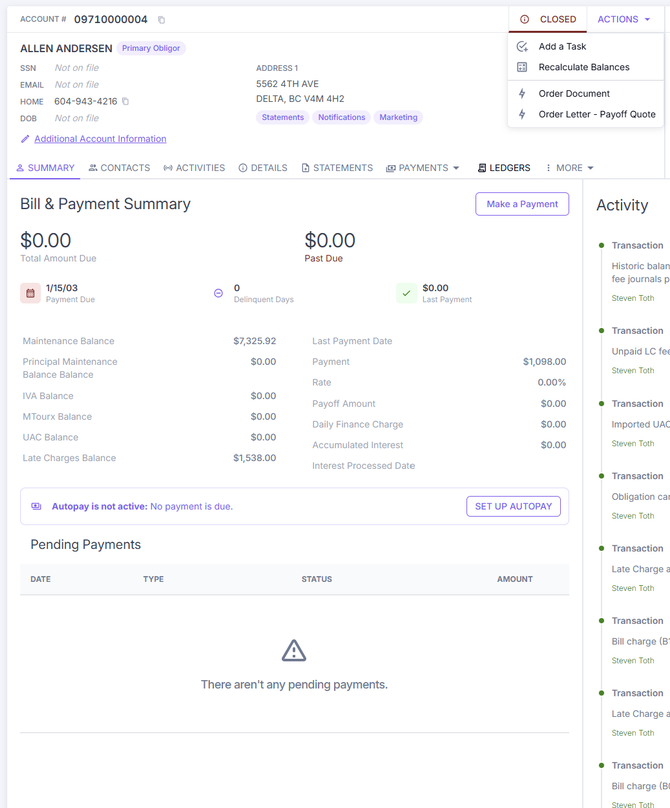
- Select the Actions dropdown in the top-right area of the obligation header.
- If balances appear outdated, select Recalculate Balances from the Actions menu first.
- Select Order Letter - Payoff Quote to generate the payoff quote.
Card convenience fees
When a portfolio charges a card convenience fee, that fee is now itemized on the portal payment review screen before the obligor confirms the payment. The obligor sees the base payment amount and the convenience fee as separate lines that add up to the total.
Previously the convenience fee was silently folded into the total — for example, a $500 payment appeared as $505 with no explanation. With itemization, the $5 convenience fee is now shown as its own line, so obligors and agents can see exactly what makes up the charged amount. If an obligor questions why their card total is higher than the payment amount, point them to the itemized convenience fee on the review screen.
Processing refunds
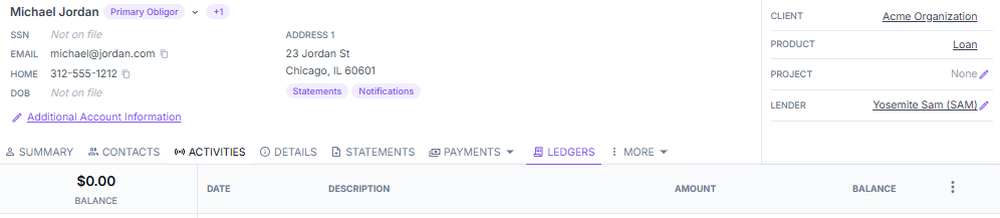
- Open the obligation and select Ledgers.
- Confirm the refund amount. If the account is overpaid, all other ledgers will show $0.00.
- Select the three-dot menu on the right of the screen.
- Use the journal editor to edit the amount for the refund.
- Update the journal entry, enter the reason as "refund check," and save.
Customer payment disputes
- Pull the full payment history and transaction log and review it with the obligor.
- Check the audit trail to verify all payments, fees, and adjustments that have been applied.
- Confirm whether any recent modifications, deferments, or fees caused an unexpected balance change.
- Provide the obligor with a detailed account statement to support the explanation.
- If the dispute cannot be resolved at the agent level, escalate to an administrator for further review.
Using the Actions menu
The Actions menu includes options such as adding tasks, recalculating balances, ordering letters, and more. Available options vary based on the account's needs and the user's role.
External agents see a limited Actions menu — Create Task and Order Letter - Payoff Quote are the primary available options. Fee waiver and status change options are not shown to Viewer or Editor roles.
External admins and internal employees see the full Actions menu.
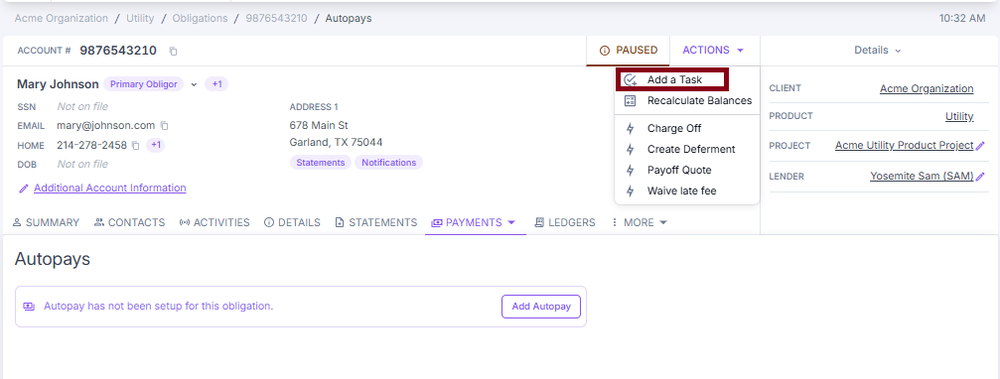
Creating a task
- Select Create Task from the Actions menu.
- Add a note with details of the task and save.
- Assigned tasks appear in the task drawer, accessible from any screen using the document-with-checkmark icon in the top navigation bar.
- Tasks can be marked complete, viewed, edited, or discarded from the task drawer or the full-page task screen.
Task creator email notifications
The user who created a task now receives email notifications on lifecycle events:
| Event | When the creator is emailed |
|---|---|
| Task completed | Immediately, when the assignee marks the task complete. |
| Task reassigned | Immediately, when the task is moved to a different owner. |
| Task overdue | Once daily as a digest, summarizing every overdue task the user created. Overdue events do not send per-task emails. |
If you create a task, expect these emails at the address associated with your ConcordLink user. Notifications are per-creator, so the assignee's actions on a task trigger a message to whoever originally opened it.
Field recalculation
Certain fields are automatically updated by ConcordLink based on system logic and should not be manually edited:
- Payoff Amount — reflects principal, interest, and fees through today
- Interest Fields — Accumulated Interest and Interest Processed Date update as payments are made or interest accrues
- Delinquency Status — updates automatically based on unpaid installments
Next: Continue to Collection Actions for collections workflows and escalations.