Collection Actions
As part of collections, agents change obligation statuses, work past-due accounts, manage escalations, and use the Collections queue to systematically work delinquent accounts.
Collections Compliance
The Collections Compliance page shows the FDCPA and Regulation F contact rules currently governing collection strategies for the client you're working in. Use it to confirm the contact limits that apply before you start calling accounts.
Find it under Collections in the client-level navigation bar. The rules are configured per client, so check the page for each client whose accounts you work. Two rule groups are displayed.
Call Frequency
Caps how many calls may be placed to an obligor within a rolling window. The rule reads as a sentence with the two limits filled in, for example: no more than 7 calls in a span of 7 days.
Call Times
Sets the earliest and latest times a call may be placed, for example no calls before 8:00 AM or after 9:00 PM. The window is evaluated in the obligor's timezone, not yours. Confirm the obligor's timezone before placing a call, particularly when your work queue spans multiple regions.
State rules can be narrower than the displayed window. The page itself carries this reminder: check state-specific call time restrictions, because some states impose narrower call windows than the federal baseline shown here. Treat the displayed times as the outer boundary, not automatic permission to call at 8:00 AM or 9:00 PM in every state.
These are the values in effect for the client, not a general reference. If the numbers on the page differ from what you expect, work to the page and raise the discrepancy with your supervisor rather than assuming the page is stale.
Related: Call Communication Tasks for logging calls, preferred call times, and Do Not Contact flags.
Collections dashboard
ConcordLink includes dedicated Collections dashboards at both the client and product level. These dashboards provide a real-time view of delinquent accounts, collection activity, and portfolio health.
- Client-level Collections dashboard — view aggregate collections performance across all products for a client.
- Product-level Collections dashboard — drill into collections activity for a specific loan product, including queue assignments and disposition outcomes.
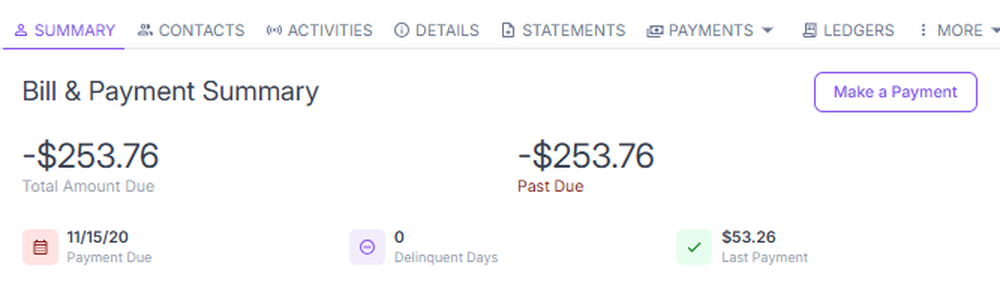
Accounts that have met the criteria for collections activity display a Collectable badge on their obligation record. This badge indicates the account is eligible to be worked in the collections workflow.
Collections queue and work queues
The Collections queue is the primary tool for working delinquent accounts in a structured, strategy-driven workflow.
How the Collections queue works
Collections in ConcordLink follow a strategy-based model:
- Strategies define the rules for how accounts are prioritized and assigned — based on days delinquent, balance, product type, or other criteria.
- Work queues group accounts according to the active strategy. Agents work accounts from their assigned work queue.
- Teams can be assigned to specific work queues, routing the right accounts to the right group of agents.
- Waterfall runs execute the strategy logic on a scheduled basis, assigning accounts to queues based on current criteria.
Waterfall run detail
Each waterfall run now has a run-detail page that makes it possible to see exactly what a run did:
- Per-queue drill-through — open a run and drill into each queue to see how accounts were assigned.
- Field inspection — inspect the field values a run evaluated when assigning accounts, so you can confirm why an account landed in a given queue.
Two reliability changes also affect how runs behave:
- Task priority is locked at run time. The priority used to dispatch work is fixed when the run executes, giving predictable dispatch order rather than priority shifting mid-run.
- A broken queue filter fails the run immediately. If a queue's filter is invalid, the run now fails right away instead of continuing and corrupting later queues. Fix the filter and re-run.
Working the collections queue
- Log in and navigate to the Collections section from the top navigation or the product-level Collections dashboard.
- Select your assigned work queue.
- Open the next account in the queue. Review key data: days delinquent, balance, contact information, and account history.
- Confirm the contact is permitted under the client's Collections Compliance rules: the call frequency cap and the call time window in the obligor's timezone.
- Contact the obligor through phone, email, text message, or the online portal.
- Record the outcome using an agent disposition — the result of the contact attempt (e.g., left message, promise to pay, no answer, payment arranged).
- Document additional details in notes, set follow-up tasks, and update the obligation status as appropriate.
- Move to the next account in the queue.
Agent dispositions
After each contact attempt, agents record a disposition. Dispositions log the outcome of the interaction and may trigger follow-up actions in the workflow, such as scheduling a callback or flagging an account for escalation.
Creating a task
Tasks allow agents to escalate requests that require further review or special approval — for example, a due date change. Once assigned, back-office teams take the necessary action and mark the task complete.
- Open the obligor's account and select Create Task from the Actions menu.
- Assign the task to the appropriate team (typically the Contact Center).
- Add a note describing the request with relevant account details.
- Select Save.
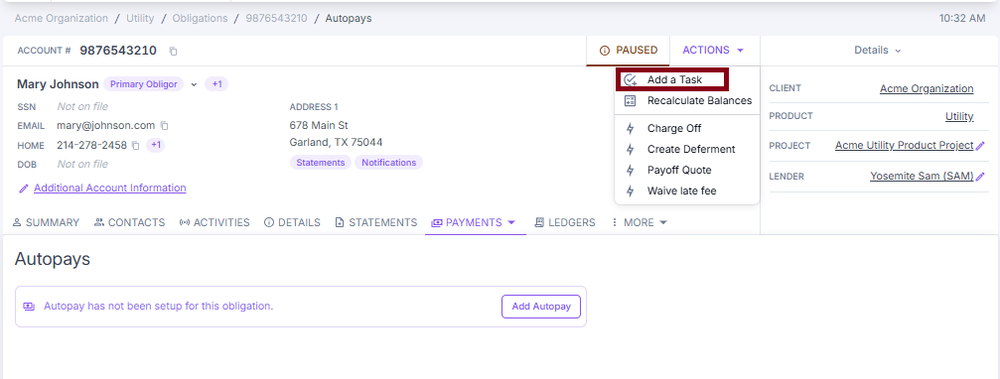
When a task is saved, ConcordLink automatically:
- Sends an email notification to the assignee
- Logs a note on the obligation
- Allows the assigned team to take the needed action and mark the task complete
The task creator also receives email notifications when a task they opened is completed, reassigned, or overdue. See Agent Tasks > Task notifications.
Changing an obligation's status
- Open the obligation and select Actions from the dropdown menu at the top of the page.
- Select Change Status and choose the new status from the available list.
- Review any escalation prompt or warning that appears before confirming the change.
- Save the status.
Escalations
Hardship requests
- Navigate to the Activities tab on the obligor's account and add a new note.
- Document the details of the hardship request, including the nature of the hardship, what the obligor is requesting, and any relevant dates.
- Set a follow-up date on the note.
- Submit a Customer Request Form to escalate the request to the appropriate team at your organization.
Escalating account or platform issues
External agents: Escalate account-level issues to your admin. You cannot submit platform or technical issues directly to Concord.
External admins: For account-level issues, escalate internally or submit a Customer Request Form. For platform or technical issues, contact Concord support directly.
Internal employees: For account-level issues, escalate to a direct supervisor and submit a Customer Request Form if operational intervention is needed. For platform or technical issues, contact the Concord internal technical support team.
Always document the issue thoroughly before escalating — include the time of occurrence, the account or function affected, the steps taken, and any error messages. This ensures efficient resolution.
Back to: Payment Actions