Reporting
Use this section to find the right reporting tool for your needs, access standard reports, export data, and resolve common issues.
Understand reporting types in ConcordLink
"Reporting" means different things to different people. ConcordLink organizes reporting into four distinct types. Knowing which type you need helps you find the right tool and set the right expectations.
Need high-level portfolio visuals for leadership? → Dashboards
Need batch reconciliation or cash management? → Treasury tab
Need a standard client-facing report? → Reports tab
Need data delivered to you automatically on a schedule? → Data exports
Dashboards
Dashboards are interactive, presentation-ready views that help executives and leadership monitor portfolio performance and collections metrics. They support drill-down, filtering, and export.
Treasury workflows
Treasury workflows are operational tools embedded in the Treasury tab — not traditional reports. They let the Treasury and Cash Management teams reconcile and manage cash flow through ConcordLink. They're sometimes called "reports" because they produce exportable data, but their primary purpose is workflow support.
Standard reports
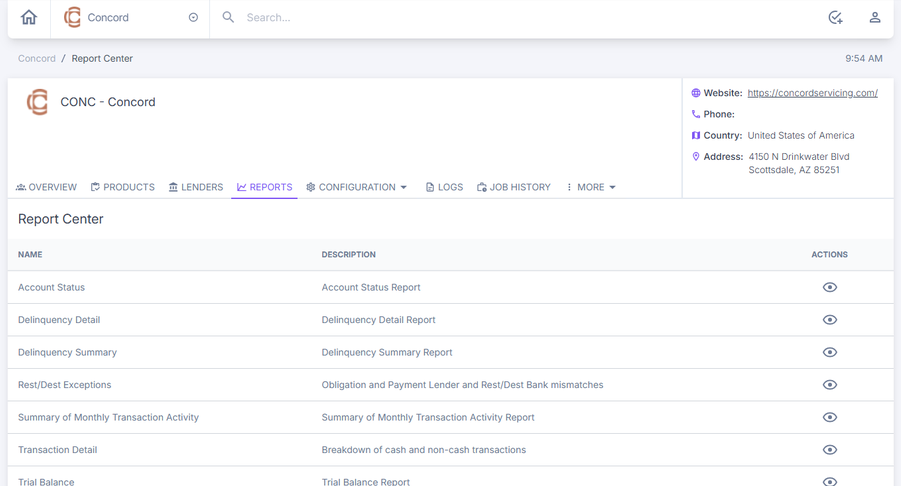
Standard reports (also called canned reports) are pre-built reports that clients access from the Reports tab in ConcordLink. Every applicable client gets the same report template by default — there's no per-client customization unless a new report is built.
Available standard reports
| Report | Description |
|---|---|
| Summary of Transaction Activity | High-level summary of transactions across the portfolio |
| Transaction Detail | Line-by-line transaction breakdown by ledger |
| Delinquency Summary | Summary of delinquent account counts and balances |
| Delinquency Detail | Account-level delinquency breakdown |
| Account Status | Current status snapshot for accounts in the portfolio |
| Trial Balance | Balance totals by ledger across the portfolio |
| Rest Desk Exceptions | Exception items flagged through the rest desk process |
Data exports
Data exports are automated, scheduled deliveries of ConcordLink data sent directly to a recipient. You don't go get the data — it comes to you.
Choose the right reporting type
| If you need… | Use this type | Where to find it |
|---|---|---|
| High-level portfolio performance visuals for leadership | Dashboards | TrueBI (embedded in ConcordLink when available) |
| Batch reconciliation, payment detail, or fund transfer management | Treasury workflows | Treasury tab in ConcordLink |
| A standard client-facing or operational report | Standard reports | Reports tab in ConcordLink |
| Data delivered automatically on a schedule (email or SFTP) | Data exports | Submit a request to TechOps |
Access reports
- From the Home Dashboard, go to the Reports section in the top navigation bar.
- Select the applicable client group or portfolio scope.
- Choose the report type and set the relevant filters, including date range and portfolio parameters.
- Select View Report.
- To export, select the format you want (CSV, Excel, or PDF), then select Export.
Export obligation and obligor grids
Obligation and obligor grid exports run as background downloads with a progress notification. This lets large exports — including those with large "is any of" filters — complete without errors.
- From the obligations or obligors grid, apply your filters.
- Select Export.
- A progress notification appears at the bottom of the screen while the export runs in the background.
- When the export is complete, download the file from the notification or the Operations History page.
Export Treasury Summary Payments
You can export the Treasury Summary Payments report directly to CSV.
- Go to the Treasury section and open Treasury Summary.
- Set the date range and payment filters you want.
- Select Export to CSV.
- The file downloads with all payment detail rows that match your current filters.
Export Transaction Detail
The Transaction Detail export includes First Name and Charges columns in addition to standard transaction fields.
- Go to Reports and select Transaction Detail.
- Set the date range and portfolio filters you want.
- Select Export. The downloaded file includes the First Name and Charges columns.
Build custom reports
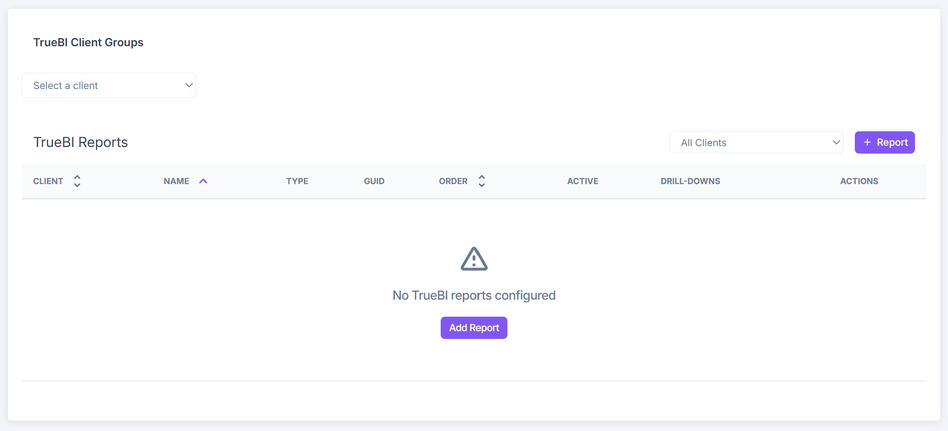
- From the Home Dashboard, go to the Reports tab.
- Select the applicable client group.
- Select + Report.
- Choose the fields, filters, and drill-down options you need.
- Save the report. If you need automated delivery, coordinate with a Concord administrator to schedule it.
Troubleshoot reporting issues
Report data doesn't match expectations
- Verify that report filters, date ranges, and portfolio parameters are set correctly.
- Confirm that all relevant accounts and portfolios are in scope.
- Check whether recent data imports or integrations may have caused discrepancies.
- Cross-reference against a known baseline report to identify where the variance starts.
- If data is still inconsistent, escalate to ops or the data team to investigate upstream data integrity.
Exported report is incomplete or formatted incorrectly
- Rerun the report and verify that all required fields and columns are selected before exporting.
- Confirm the export format matches your intended use (CSV, Excel, or PDF).
- If the data set is too large for a single export, apply filters or split it into smaller batches. Obligation and obligor grid exports run in the background, which resolves most large-export failures.
- If formatting issues persist, document the behavior and escalate to ops or Concord support.
Client or portfolio data appears outdated
- Check when the last data sync or integration refresh ran.
- Verify that the data source for the dashboard or report is current.
- Confirm with ops that the most recent scheduled data import completed successfully.
- If data is consistently behind, escalate to the ops or integrations team to investigate the refresh schedule.
Back to: Business Users