Treasury Info
The Treasury section in ConcordLink provides tools to monitor payment summaries, manage bank accounts, and review individual payment transactions. Access all Treasury features by selecting Treasury in the top navigation bar, which reveals three sub-sections: Summary, Accounts, and Payments.

Treasury payments
The Payments section provides a detailed log of all payment transactions for a specific client, including status, method, and any errors.
Accessing Treasury payments
- Select Payments from the dropdown menu.
- Payments display in the context of the currently selected client, shown in the client header at the top of the page.
- Use the Show dropdown to filter by payment status: All, Posted, Pending, or Failed.
Handling payment errors
- Locate the payment with an error in the Error column.
- Select the chevron (∨) on the right side of the row to expand and view the full error message.
- Review the error details to determine corrective action.
- To cancel a pending payment, select the cancel icon in the Actions column.
The following sections cover how to post cash payments, add and validate bank accounts, understand payment amount types, and review how late charges are calculated in ConcordLink.
Posting a cash payment
- From the Dashboard, use the search bar to find the borrower by name, account number, or obligation ID.
- Select the relevant obligation to open the account detail page.
- Select the Payments tab and select Make a Payment.
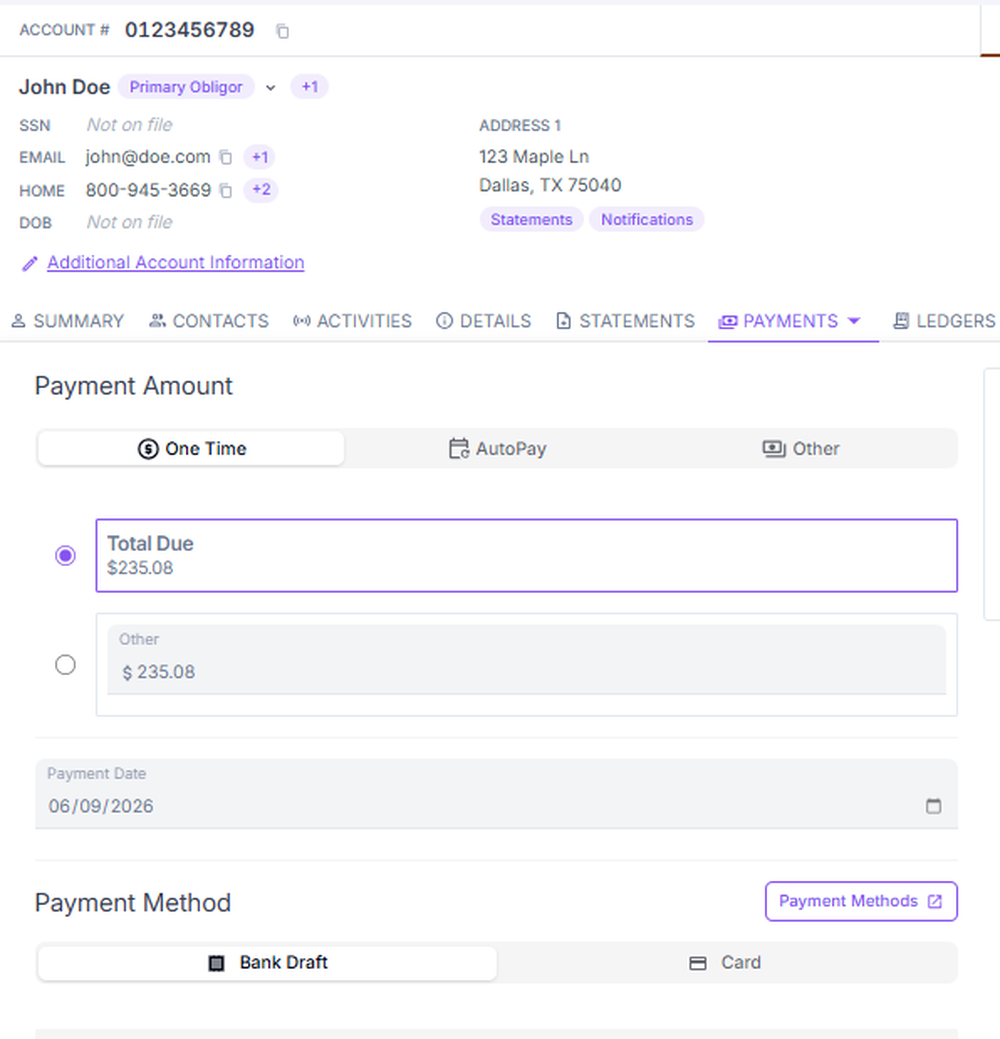
- Fill in the payment details, such as payment type, amount, effective date, payment method, and reference.
- Review the payment summary to confirm the amount, effective date, and application (principal, interest, fees).
- Select Submit to confirm.
- Return to the Payments tab and confirm the payment status.
- Note the transaction ID for your records.
Adding and validating a bank account (ACH)
- On the obligation detail page, navigate to the Payments section.
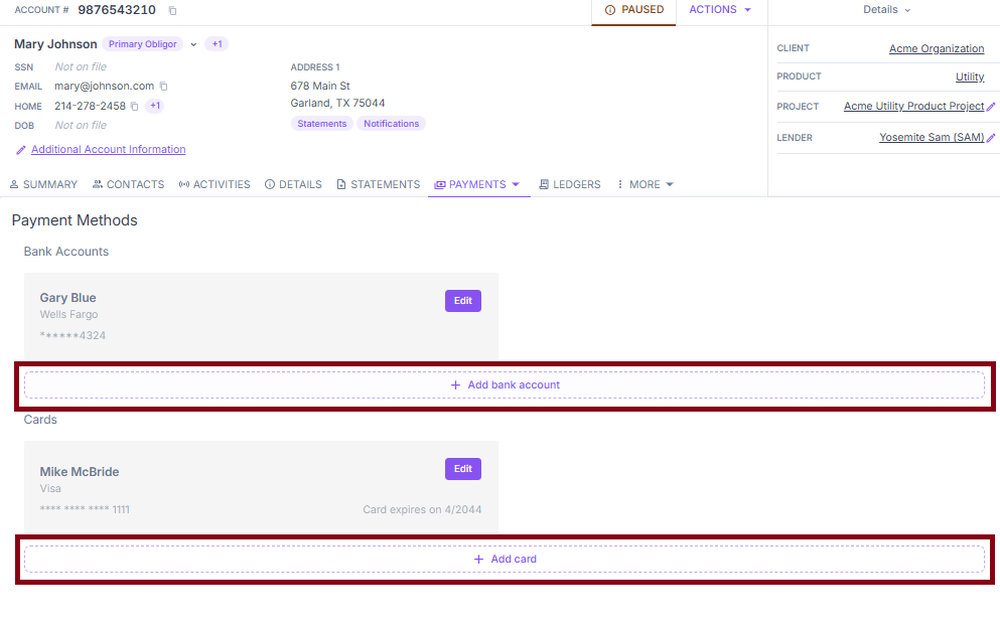
- Go to Payment Methods.
- Select Add New Bank Account or Edit an existing one.
- Enter the obligor's banking details:
- Routing number: the 9-digit ABA routing number
- Account number: the full bank account number
- ConcordLink will automatically trigger a validation request to JP Morgan Chase.
- Once validation returns a Valid response, save the bank account to the obligation.
- If the account required multiple attempts to validate, log an activity note on the obligation.
Understanding payment amounts
A payment is expected every month on the same day. A loan advances when the Contractual Payment Amount (CPA) is satisfied for the month.
- Current Due: The amount due for the next payment period, set when a statement is generated.
- Past Due: Any amount not paid by the payment due date, including applicable late fees.
- Minimum Due: The minimum payment required to keep the loan current.
- Total Due: The sum of the current due and past due amount.
Late charge assessment
Late charges are stored at the obligation level. Late charges are assessed each business day for the prior day, after the Lockbox file is posted.
The following account statuses suppress late charge assessment: inactive, bankruptcy, hold, pending rescission, legal, transferred, pending upgrade, dispute, and autopay hold.
Troubleshooting
Unable to access a specific portfolio or dashboard
- Confirm the user's role and permissions include access to the relevant portfolio.
- Check whether the portfolio is active and fully onboarded onto the platform.
- Verify the dashboard has been configured and published for the user's role.
- Request a permission update from your admin if access has not been granted.
- If access appears correct but the portfolio is still not visible, escalate to your admin.
Unable to locate a specific client account
- Search using multiple identifiers such as client name, account number, or portfolio name.
- Check whether the account may be listed under a different portfolio or entity name.
- Confirm the account has been fully onboarded and is not in a pending status.
- If the account cannot be located, escalate to ops to confirm it has been boarded correctly.
Next: Continue to Reporting for standard reports and TrueBI custom reporting.