Reporting Actions
The following sections explain how to access reports and use the audit trail to review account changes in ConcordLink.
Running and exporting reports
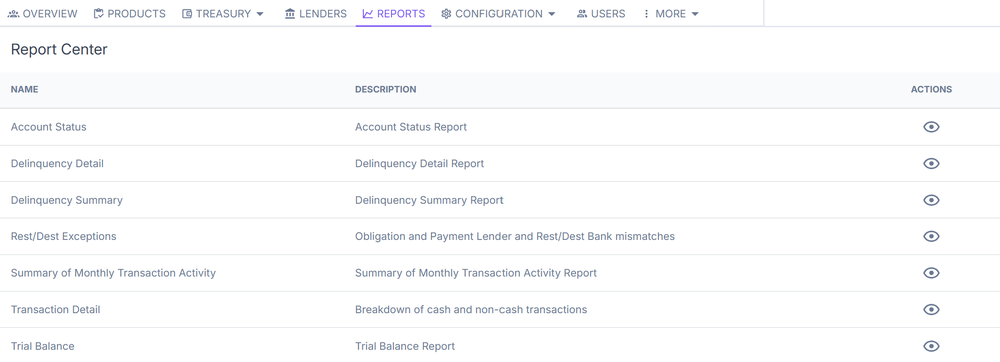
For complete reporting procedures — including accessing standard reports, building custom reports in TrueBI, exporting obligation/obligor grids, Treasury Summary Payments CSV export, Transaction Detail export, scheduling automated delivery, and troubleshooting — see Business Users > Reporting.
Quick summary for agents:
- Standard reports are available under the Reports tab on the Accounts Dashboard. External agents and admins see reports scoped to their portfolio only.
- To export obligation or obligor data, apply the desired filters in the list view and select the Export icon. Large exports run as background downloads with a progress toast notification — you can continue working while the export completes.
- For custom or advanced reporting, navigate to TrueBI on the Home Dashboard (external admins and internal employees only).
Background exports and large filter sets
Obligation and obligor grid exports now run as background downloads. When you initiate an export:
- A progress toast appears in the corner of the screen showing download status.
- You can continue navigating and working in ConcordLink while the export runs.
- Once complete, the file downloads automatically to your browser.
This change also resolves a previous issue where applying large "is any of" filter sets (e.g., filtering by a long list of account numbers) could cause errors on page reload or export. Large filter exports now process reliably regardless of filter size.
Reviewing account changes with the activity log
ConcordLink tracks every change made to an obligation, including data field edits, and stores a full audit trail. This lets you review:
- The original value of a field
- The new value after the change
- When the change was made
- Who made the change (username and timestamp)
Accessing the audit trail
- Open the obligor's account and go to the Activity tab.
- Use the filters to select the Audit activity type.
- Look for entries that indicate a value was modified.
- Expand the row using the caret (▼) icon to reveal the full before-and-after detail.
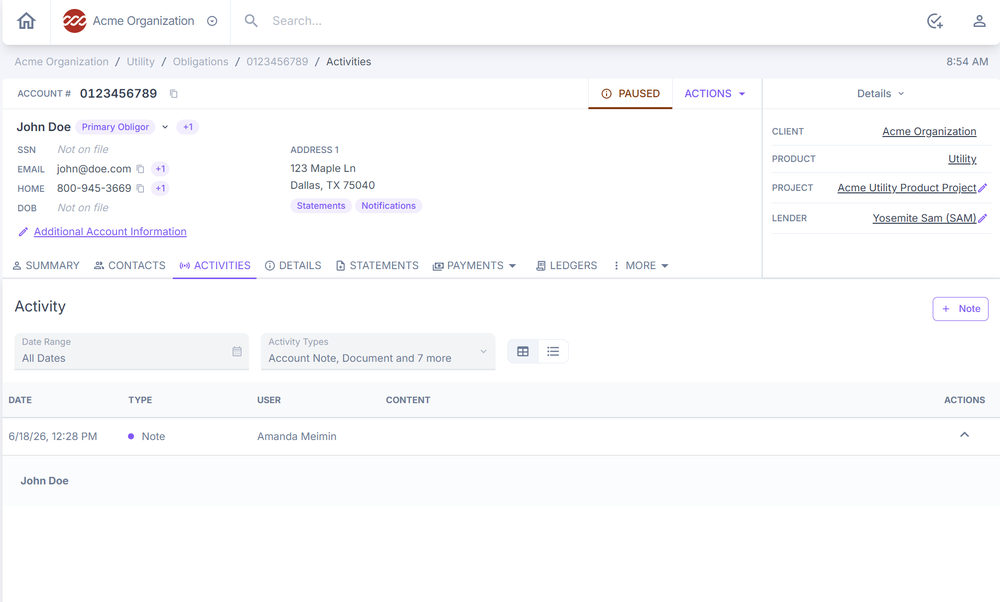
The audit trail is especially useful if a customer questions why their account was modified, or if you need to trace changes made during a servicing issue.
Next: Continue to Statement and Document Actions for managing statements and documents.